Guide de configuration Mail2Order
Table des matières
1. Configurer les instructions d'extraction
Ce guide explique comment Hyperfox détermine quelles données rechercher dans une commande entrante, et comment vous pouvez affiner ce comportement grâce aux instructions d'extraction.
Que sont les instructions d'extraction ?
Les instructions d'extraction indiquent à l'IA de Hyperfox exactement quelles informations trouver dans un document de commande reçu.
Lorsqu'une commande arrive (un e-mail, un PDF, un fichier Excel ou toute autre source prise en charge), l'IA la parcourt et recherche les données qui vous intéressent : les lignes de commande, la date de livraison, la référence client, et ainsi de suite. Chaque instruction d'extraction est une courte description, en langage courant, d'une information précise et de l'endroit ou de la manière dont elle apparaît habituellement dans vos commandes.
Considérez une instruction d'extraction comme une consigne claire donnée à un nouveau collègue : mieux vous décrivez ce qu'il faut chercher, plus il le trouvera de manière fiable.
Mappage IA : relier les champs aux instructions
Chaque champ du modèle de données de Hyperfox est relié à sa propre instruction d'extraction. Nous appelons ce lien le mappage IA.
Le modèle de données est l'ensemble structuré des champs qui composent une commande dans Hyperfox — par exemple :
- Ligne de commande (Article, Quantité, Code d'unité)
- Remarques
- Date d'émission
- Date de livraison
- Référence client
- Partie cliente acheteuse
- Partie cliente comptable
- Instruction de division (voir la documentation)
Pour chacun de ces champs, le mappage IA contient une instruction d'extraction qui guide l'IA sur ce qu'elle doit saisir. Par exemple, le champ Ligne de commande peut porter l'instruction suivante :
Une ligne de commande contenant un produit, une quantité et éventuellement le prix commandé.
De l'extraction à une commande prête à valider
Saisir les données brutes n'est que la première étape. Une fois qu'une valeur a été extraite, l'IA tente de la faire correspondre aux Données de référence de votre entreprise (vos données de base sur les clients, les produits, etc.).
Par exemple, lorsque l'IA extrait un article d'une ligne de commande, elle recherche le produit correspondant dans vos Données de référence afin que la ligne de commande soit reliée au bon article de votre catalogue. Il en va de même pour les clients, les unités et les autres champs.
Le résultat est une commande qui n'est pas seulement saisie, mais aussi enrichie et alignée sur vos propres données — prête à être vérifiée par vos soins dans l'écran À valider.
Modifier le mappage IA
Vous pouvez consulter et ajuster vous-même les instructions d'extraction via l'interface Mappage IA.
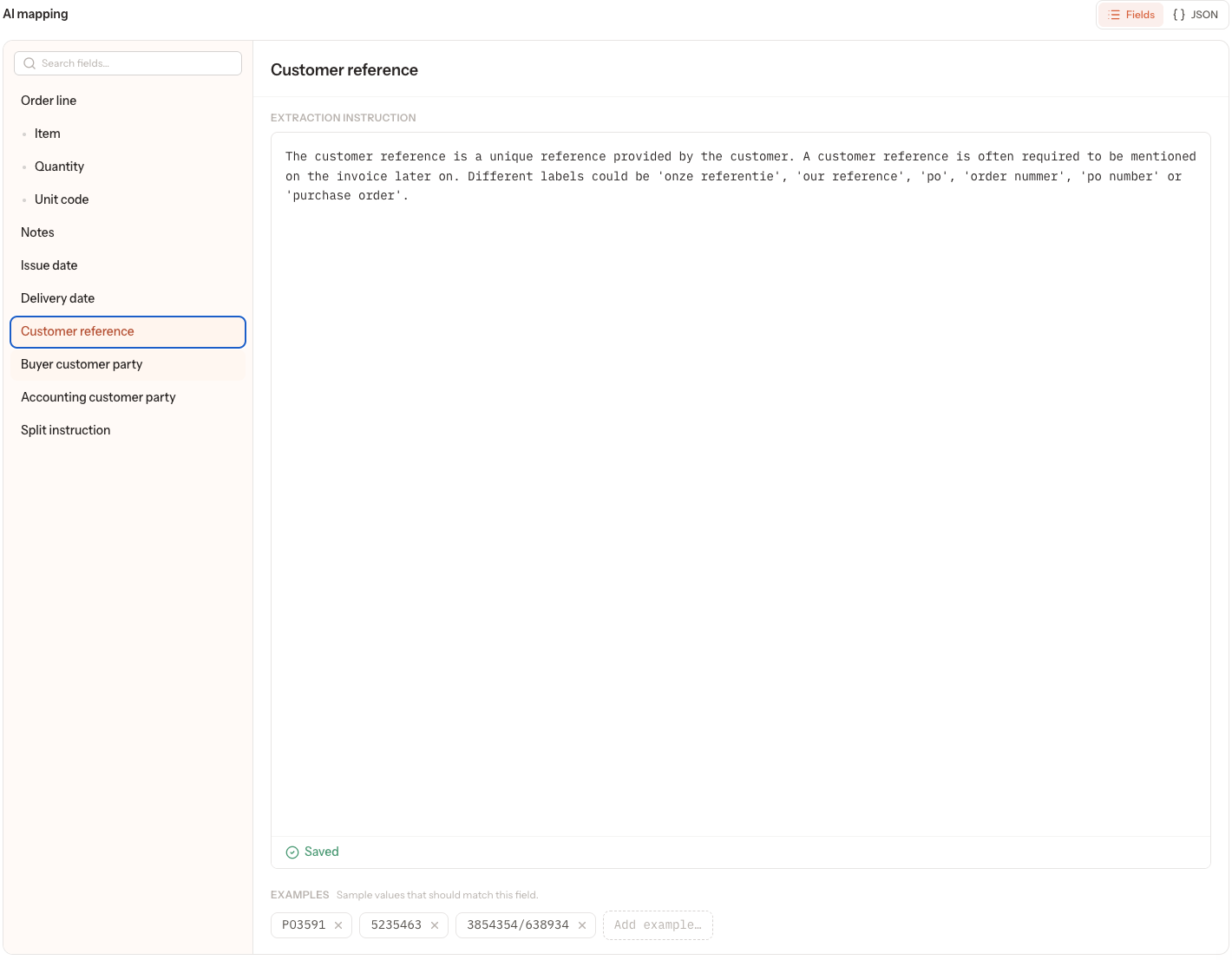
Pour modifier une instruction d'extraction :
- Accédez aux paramètres de la plateforme via l'icône d'engrenage en haut à droite.
- Sélectionnez Mappages dans le menu latéral.
- Choisissez le mappage que vous souhaitez modifier.
- Dans la liste de gauche, sélectionnez le champ que vous souhaitez configurer (par exemple, Ligne de commande ou Date de livraison).
- Dans le champ Instruction d'extraction, décrivez — dans un langage clair et courant — ce que l'IA doit rechercher dans le document de commande.
- Enregistrez vos modifications via le bouton Enregistrer en haut à droite.
Les modifications apportées au mappage IA s'appliquent aux commandes traitées après l'enregistrement de la modification. Si une commande a été traitée auparavant, utilisez Réessayer sur cette commande pour la retraiter avec les instructions mises à jour. Les commandes qui étaient déjà en cours de traitement utilisent encore le mappage IA antérieur à vos modifications.
Comment diviser une commande unique
Il arrive qu'un seul document entrant contienne en réalité plusieurs commandes. Hyperfox peut automatiquement diviser un tel document en plusieurs commandes distinctes, afin que chacune puisse être validée et traitée individuellement.
La division fonctionne comme n'importe quelle autre extraction : elle est pilotée par une instruction. Le mappage IA comprend un champ dédié Instruction de division dans lequel vous décrivez la règle que l'IA doit suivre pour déterminer si — et comment — une commande doit être divisée.
Pour configurer la division :
- Ouvrez l'écran Mappage IA.
- Sélectionnez le champ Instruction de division dans la liste.
- Dans le champ Instruction d'extraction, décrivez en langage courant quand le document doit être divisé en plusieurs commandes (par exemple, par adresse de livraison, par date de livraison ou par référence de bon de commande). Si l'Instruction de division est laissée vide, aucune division n'a lieu — le document est toujours traité comme une commande unique.
Conseils pour rédiger de bonnes instructions
- Soyez précis et concret. Décrivez ce que représentent les données et comment elles apparaissent habituellement dans vos commandes.
- Utilisez le vocabulaire de vos commandes. Si vos clients parlent de « votre référence » ou de « numéro de bon de commande », mentionnez ces termes.
- Restez ciblé. Chaque instruction doit décrire un seul champ, et non la commande entière.
- Rédigez l'instruction comme si vous l'expliquiez à un collègue lors de son premier jour, sans aucune connaissance préalable de votre activité.
Exemples et vue JSON
Deux éléments supplémentaires sont disponibles sur l'écran Mappage IA :
- Exemples — Pour chaque champ, vous pouvez ajouter des valeurs d'exemple censées lui correspondre. Elles aident l'IA à reconnaître le type de données que vous attendez pour ce champ.
- Bascule Champs / JSON — En haut à droite, vous pouvez basculer entre la vue Champs (l'éditeur guidé, champ par champ, décrit ci-dessus) et une vue JSON, qui affiche le mappage sous-jacent sous forme de données structurées pour une configuration avancée. Des indications détaillées sur les Exemples et la vue JSON suivront dans une prochaine mise à jour de ce guide.
Bon à savoir
- Les instructions d'extraction déterminent ce que l'IA recherche, tandis que le Codex capture la manière dont les commandes précédentes ont été validées. Ensemble, ils aident Hyperfox à traiter vos commandes avec une précision et une cohérence croissantes au fil du temps.
- Les modifications apportées au mappage IA s'appliquent aux commandes traitées après l'enregistrement de la modification. Si une commande a été traitée auparavant, utilisez Réessayer sur cette commande pour la retraiter avec les instructions mises à jour.