Order Portal Guide
Welcome to the online order portal! This guide walks you through how to browse products, add them to your order, and place an order — step by step. Whether you're on a computer or phone, everything is covered here.
Table of Contents
- Introduction
- Install as App (PWA)
- Accessing the Order Portal
- Browsing Products
- Favourites
- Product Details
- Your Order
- Checkout
- Order History
- Reordering
- Logging Out
- For Sales Reps and Administrators
Introduction
The order portal is a web application that lets you easily order products from your supplier. You can:
- Browse products — Explore the full range by category or search by name/SKU.
- Use favourites — View previously ordered products for quick reordering.
- View product details — See detailed product information, specifications, and images.
- Place orders — Add products to your order, choose a delivery date, and submit your order.
- View order history — Review previously placed orders and easily reorder.
The order portal works on any device: computer, tablet, or phone. The interface automatically adapts to your screen size.
Note: The order portal is configurable. Your administrator determines which features are available. Some features described in this guide may be disabled for your environment.
Install as App (PWA)
You can install the order portal as an app on your phone. This gives you quick access from your home screen without opening a browser.
iPhone (iOS Safari)
- Open the order portal in Safari.
- Tap the Share icon (square with an upward arrow) at the bottom of the screen.
- Scroll down and tap "Add to Home Screen".
- Optionally give the app a name and tap "Add".
- The app now appears as an icon on your home screen.
Android (Chrome)
- Open the order portal in Chrome.
- Tap the menu icon (three dots) in the top right.
- Tap "Install app" or "Add to Home screen".
- Confirm by tapping "Install".
- The app now appears as an icon on your home screen.
Tip: After installation, the order portal opens as a full app without an address bar. You stay logged in automatically.
Accessing the Order Portal
You will receive a personal order link from your supplier or sales representative (via email or another channel). This link is unique to your company and gives you direct access to the order portal — no account creation or password required.
Steps:
- Click the link you received.
- You will be taken directly into the order portal, ready to order.
Tip: Save your personal link as a bookmark or install the app (see above) so you can return quickly. Your link remains valid and can be reused indefinitely.
Browsing Products
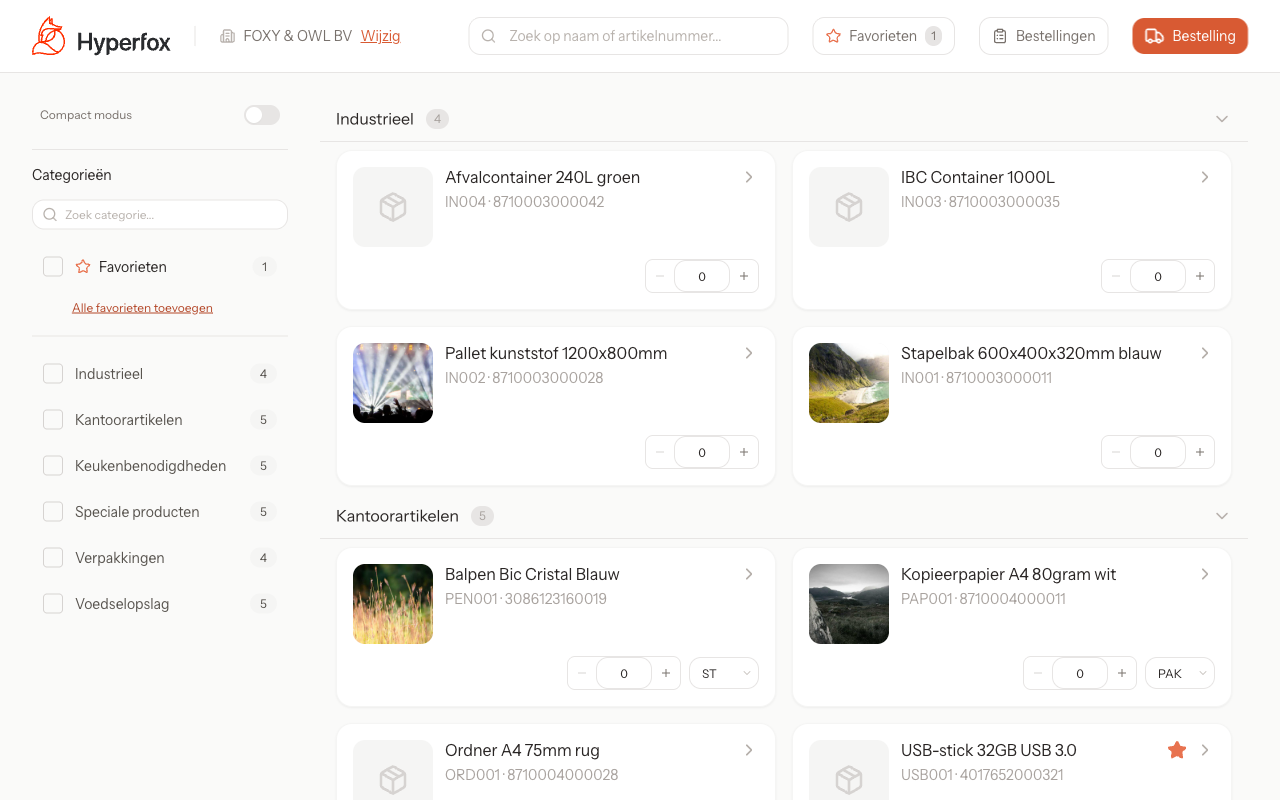
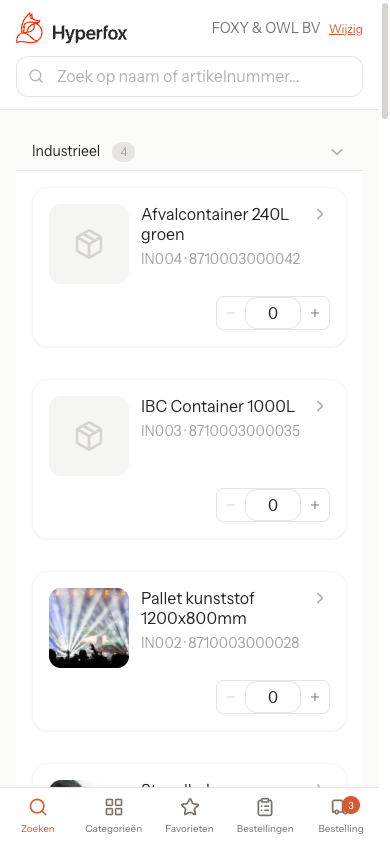
After opening your order link, you arrive at the catalogue page. Here you will find the complete product range.
What You See
- Desktop: On the left is a category sidebar that lets you filter by product category. On the right you see the product overview as cards or rows.
- Mobile: At the bottom of the screen is a navigation bar with buttons for Shop, Categories, Favourites, Order, and Orders. Tap "Categories" to open a filter panel.
Searching
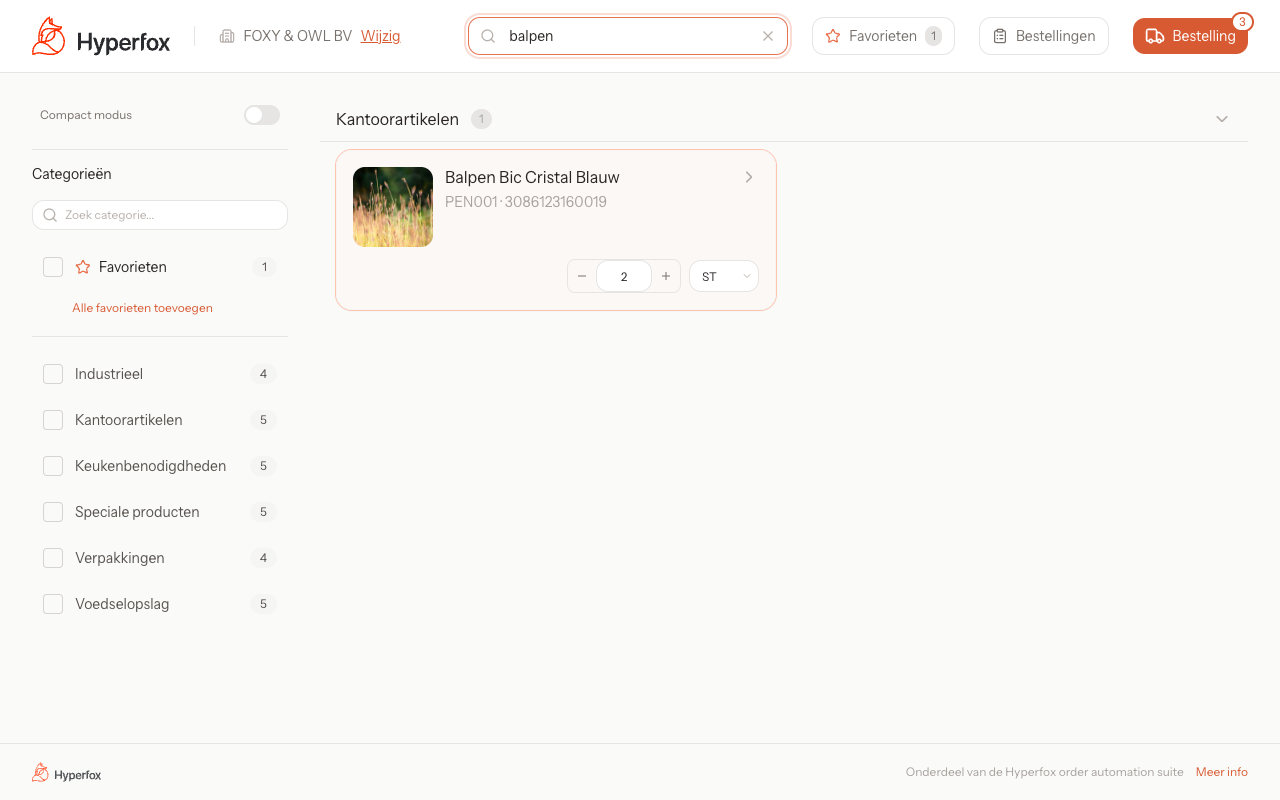
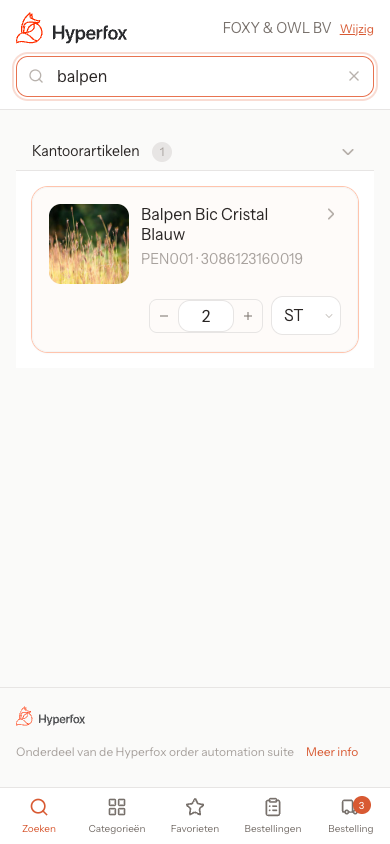
Use the search bar at the top to find products by name or SKU. Type your search term and the results are filtered instantly.
Filtering by Category
- Desktop: Click a category in the left sidebar. You can select multiple categories at once. Click "Clear selection" to remove all filters.
- Mobile: Tap "Categories" in the bottom navigation bar. A panel opens where you can select categories. Tap "Apply" to filter or "Clear" to remove the selection.
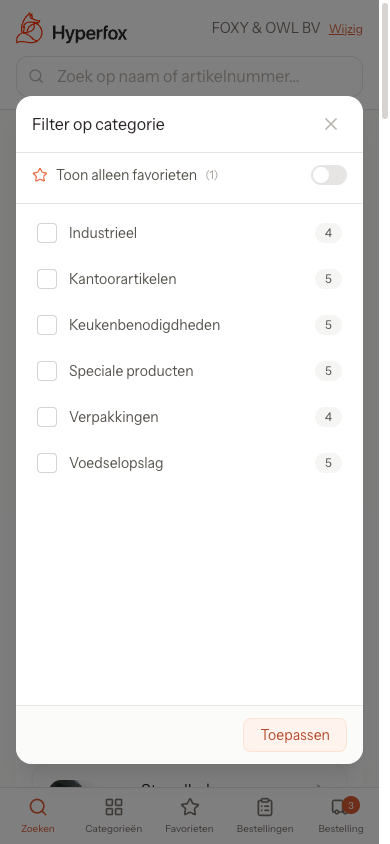
Compact View
Enable "Compact mode" to see more products at once. This displays products as compact rows instead of cards.
- Desktop: The toggle is in the category sidebar.
- Mobile: The toggle is in the category filter panel under "Compact view".
Adding a Product to Your Order
Each product has an "Add" button. Click or tap it to add the product to your order. Use the + and − buttons to adjust the quantity. If a product is already in your order, you will see "In Order" and the current quantity.
This feature is configurable and can be enabled or disabled by your administrator: product images, unit codes, unit conversions, price display, and product categories.
Favourites
Favourites are products you have ordered before. This makes it easy to quickly find your regular products.
This feature is configurable and can be enabled or disabled by your administrator.
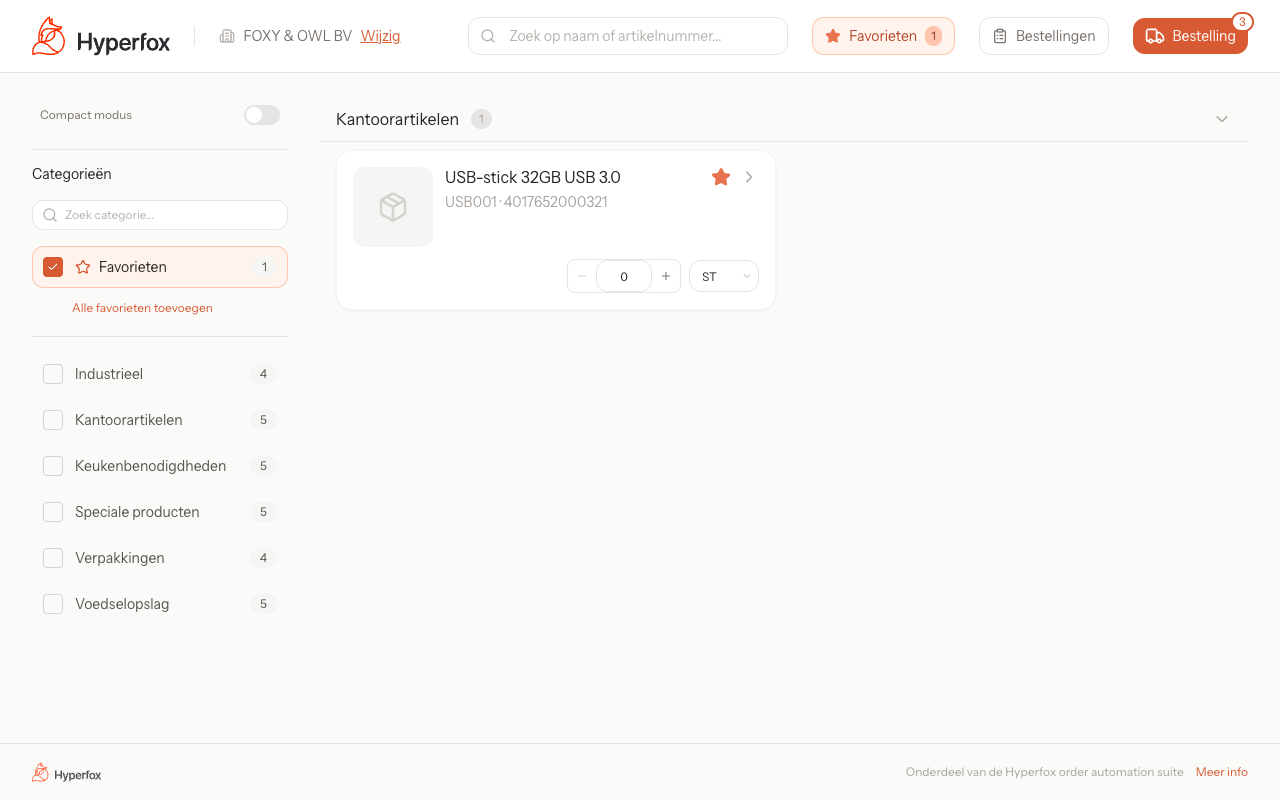
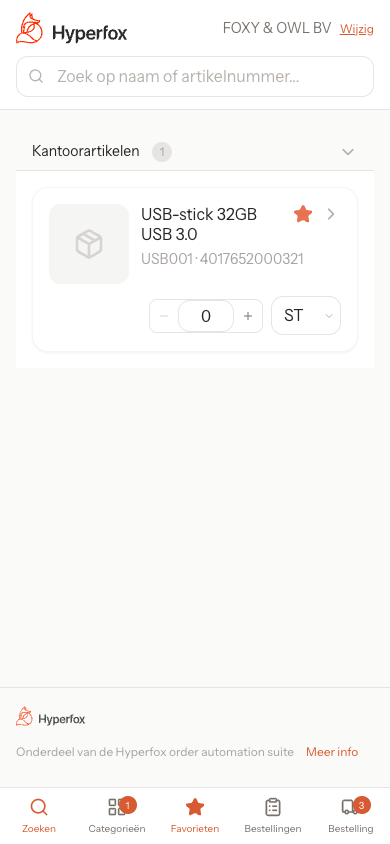
Viewing Favourites
- Desktop: Click the "Favourites" toggle in the header to show only your favourite products.
- Mobile: Tap "Favourites" in the bottom navigation bar.
Favourite products display the label "Previously ordered".
Adding All Favourites
Click "Add all favourites" to add all your previously ordered products to your order at once. A panel opens where you can adjust the quantity and unit per product before adding them.
- Use "Select all" or "Deselect all" to quickly check or uncheck products.
- Click "Add to Order" to add the selected products.
Tip: Favourites are automatically updated based on your order history.
Product Details
Click on a product to open the detail page. Here you will find detailed information about the product.
This feature is configurable and can be enabled or disabled by your administrator.
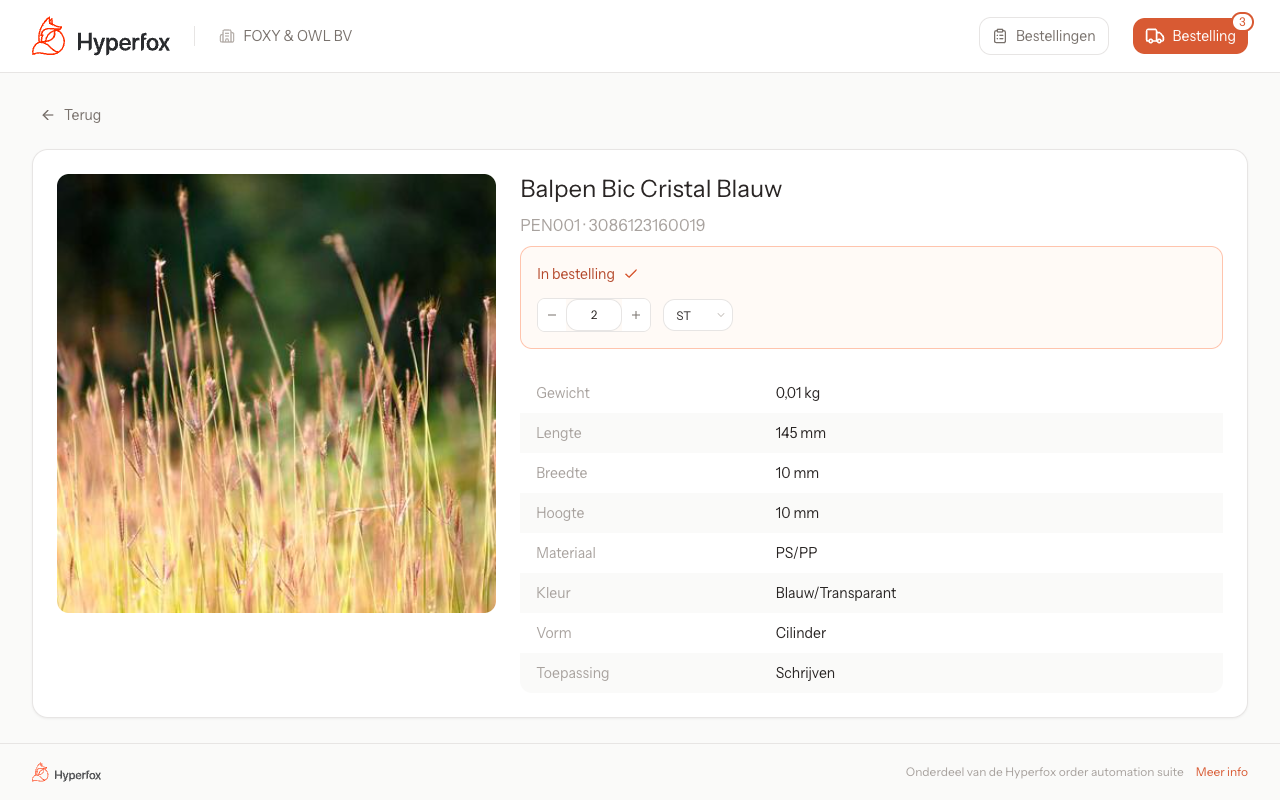
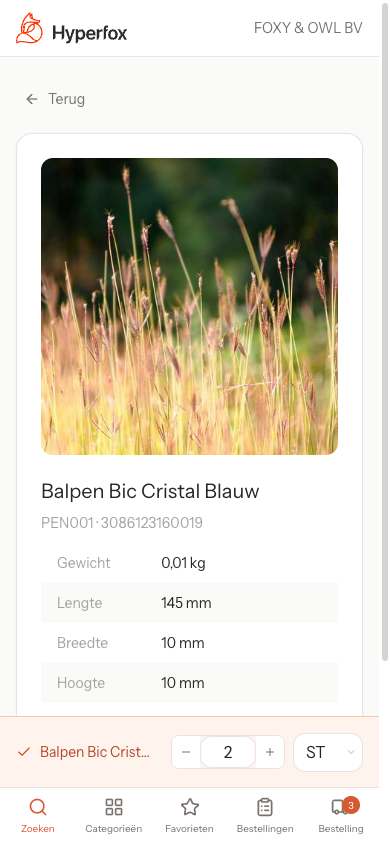
What You See
- Product image (if available)
- Product name and SKU
- Unit information — Available units and conversions (for example: 1 box = 12 pieces)
- Product specifications — Such as weight, dimensions, material, and other characteristics
- Add to order — Choose the quantity and unit, then click "Add"
Click "Back" to return to the catalogue.
Your Order
The order overview shows all products in your order. Here you can view products, adjust quantities, and remove products.
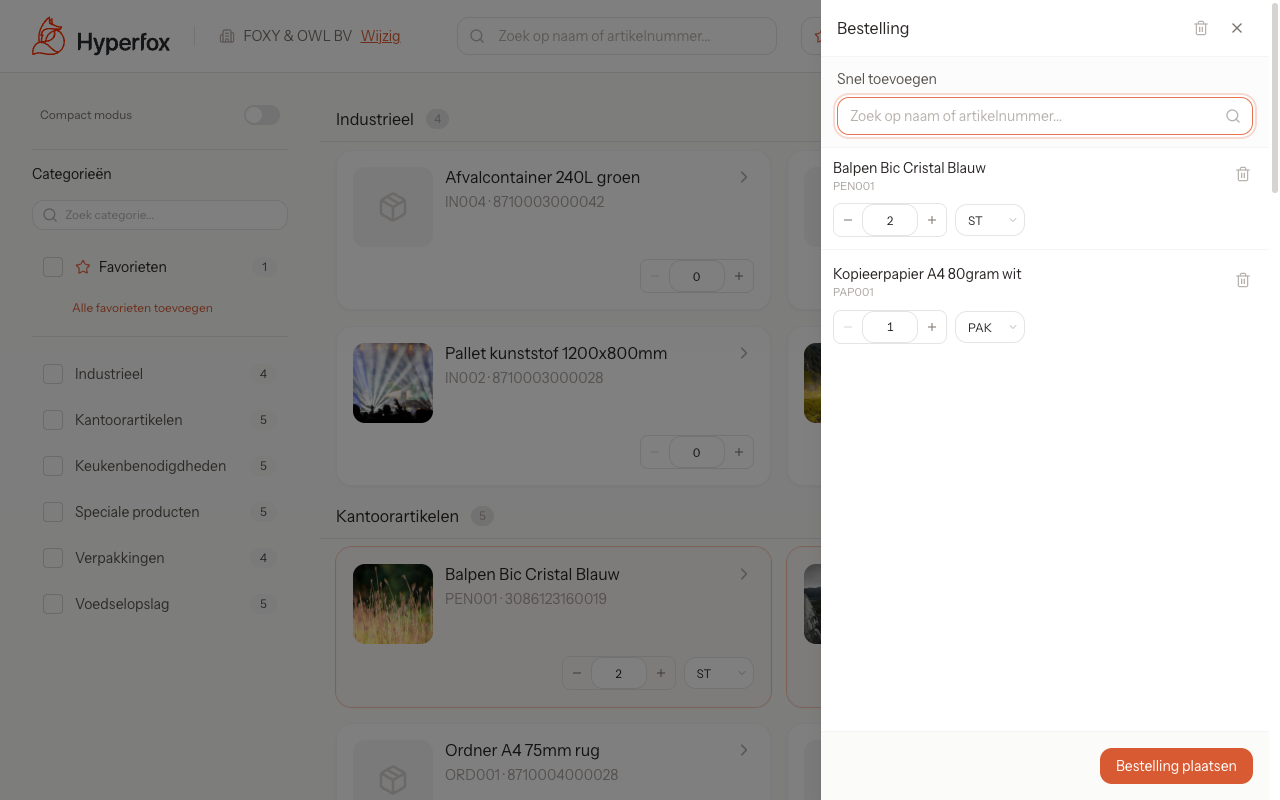
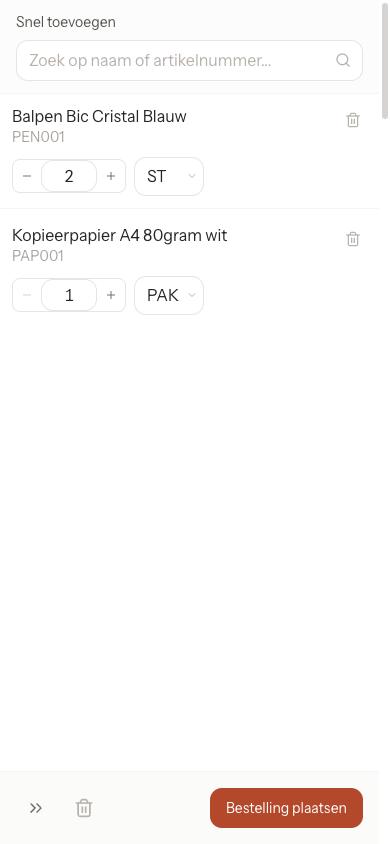
Opening Your Order
- Desktop: Click the order button in the top right of the header. You will see the number of items as a badge on the button.
- Mobile: Tap "Order" in the bottom navigation bar. The item count is shown here as well.
What You Can Do
- Adjust quantity — Use the + and − buttons next to each product.
- Change unit — Select a different unit (e.g. pieces, boxes, pallets) from the dropdown menu.
- Remove product — Click the delete icon next to the product.
- Clear order — Click "Clear order" to remove all products (you will be asked to confirm).
Quick Add (Desktop)
On desktop, the order overview includes a "Quick add" feature. Type a product name or SKU in the search field to quickly find and add a product without going back to the catalogue.
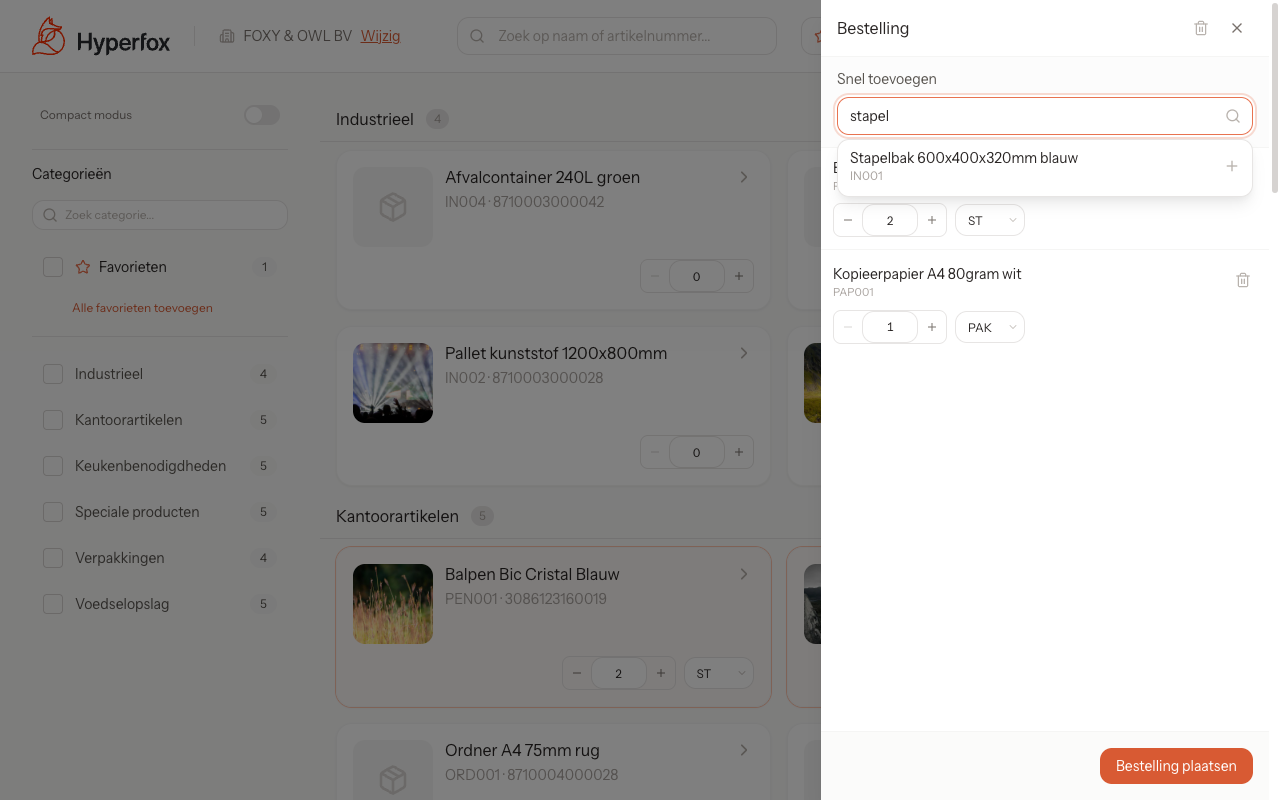
Placing Your Order
Click "Place Order" at the bottom of the order overview to proceed to the checkout screen.
Price display in the order overview is configurable and can be enabled or disabled by your administrator.
Checkout
Once you have all the products you want in your order, you can finalise it. Below you will find the full process from order to confirmation.
Step 1: Go to Checkout
Click "Place Order" at the bottom of the order overview. You will be taken to the checkout screen.
Step 2: Review Your Order
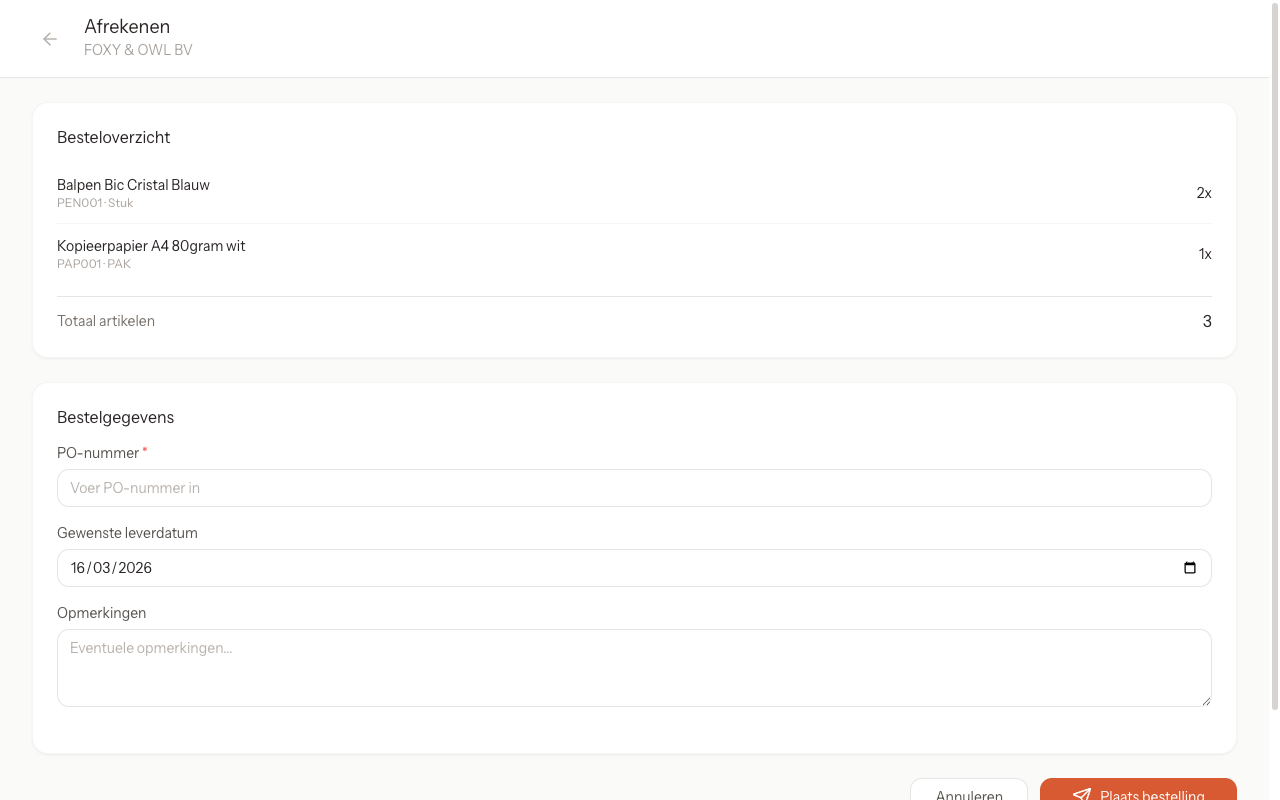
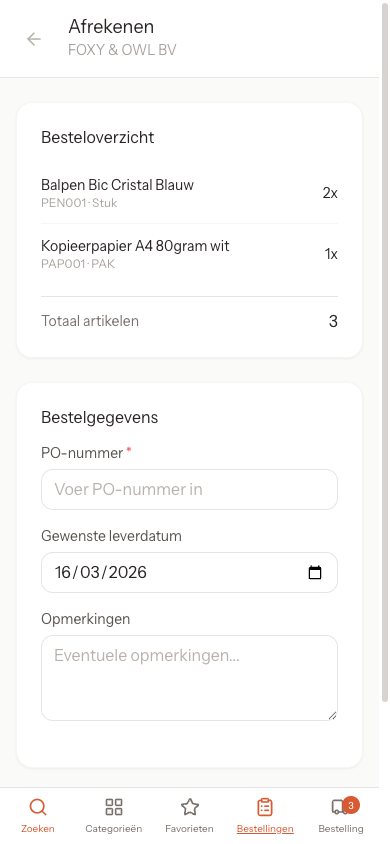
At the top of the checkout screen you will see an overview of all products in your order, including the quantity and unit per product, and the total number of items. Check that everything is correct. Want to make changes? Click "Cancel" to return to the catalogue and adjust your order.
Step 3: Fill in Order Details
Complete the following fields:
- PO number — Your purchase order number (required).
- Requested delivery date — The date you would like to receive the order. The date must fall on a weekday (Monday to Friday) and be in the future.
- Remarks — Any notes for your supplier (optional).
- Delivery method — Choose between "Delivery" (delivered to you) or "Collection" (pick up yourself). For collection, you choose a preferred collection date.
The available fields on the checkout screen (PO number, delivery date, remarks, delivery method) are configurable. Which fields are visible and/or required is determined by your administrator.
Step 4: Submit Order
Click "Place Order" to submit your order.
Note: The button is only clickable once all required fields are filled in.
Step 5: Confirmation
After placing your order you will see a confirmation page with the text "Order placed!". Here you will find a summary of your order:
- Order for (your company name)
- Order date
- Requested delivery date
- PO number
- Remarks
- Delivery method
- All items in your order
You will also receive an email confirmation.
Click "Place New Order" to return to the catalogue and start a new order.
Order History
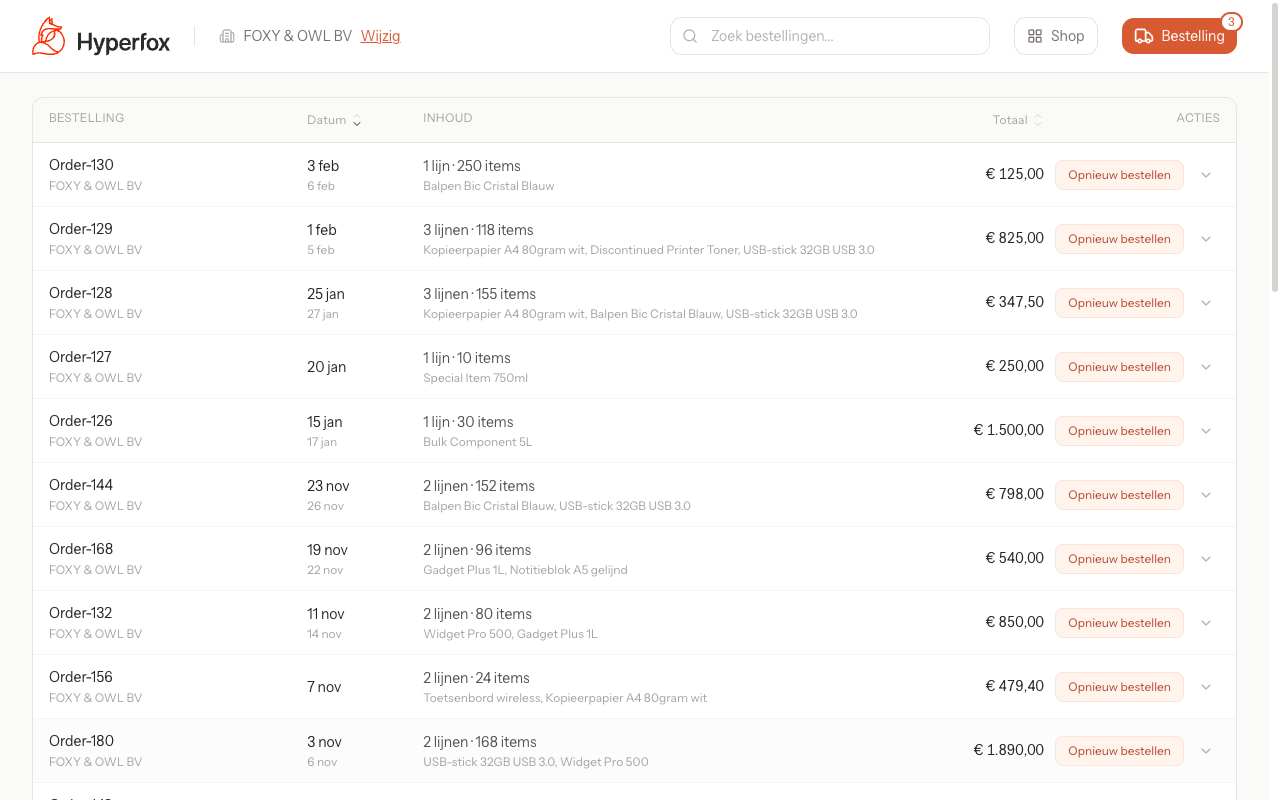
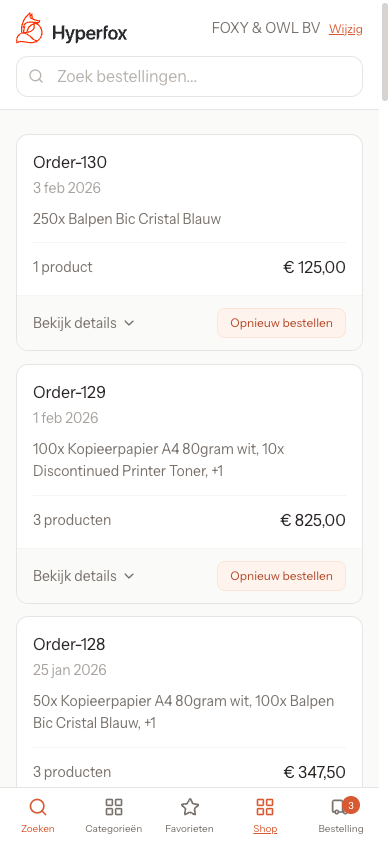
On the orders page you will find an overview of all your previously placed orders.
This feature is configurable and can be enabled or disabled by your administrator.
What You See
- Desktop: A table with columns for order date, contents, and total. Click a row to view the details of an order.
- Mobile: Orders are displayed as cards. Tap "View details" to see the contents of an order.
For each order you can view the delivery status per line, so you know exactly which items have been delivered and which are still on the way.
Navigating to Orders
- Desktop: Click "Orders" in the header.
- Mobile: Tap "Orders" in the bottom navigation bar.
Searching and Filtering
Use the search field to search orders. You can also filter by status and date.
The columns and information displayed in the orders overview are configurable by your administrator.
Reordering
From your order history you can easily reorder a previous order.
This feature is configurable and can be enabled or disabled by your administrator.
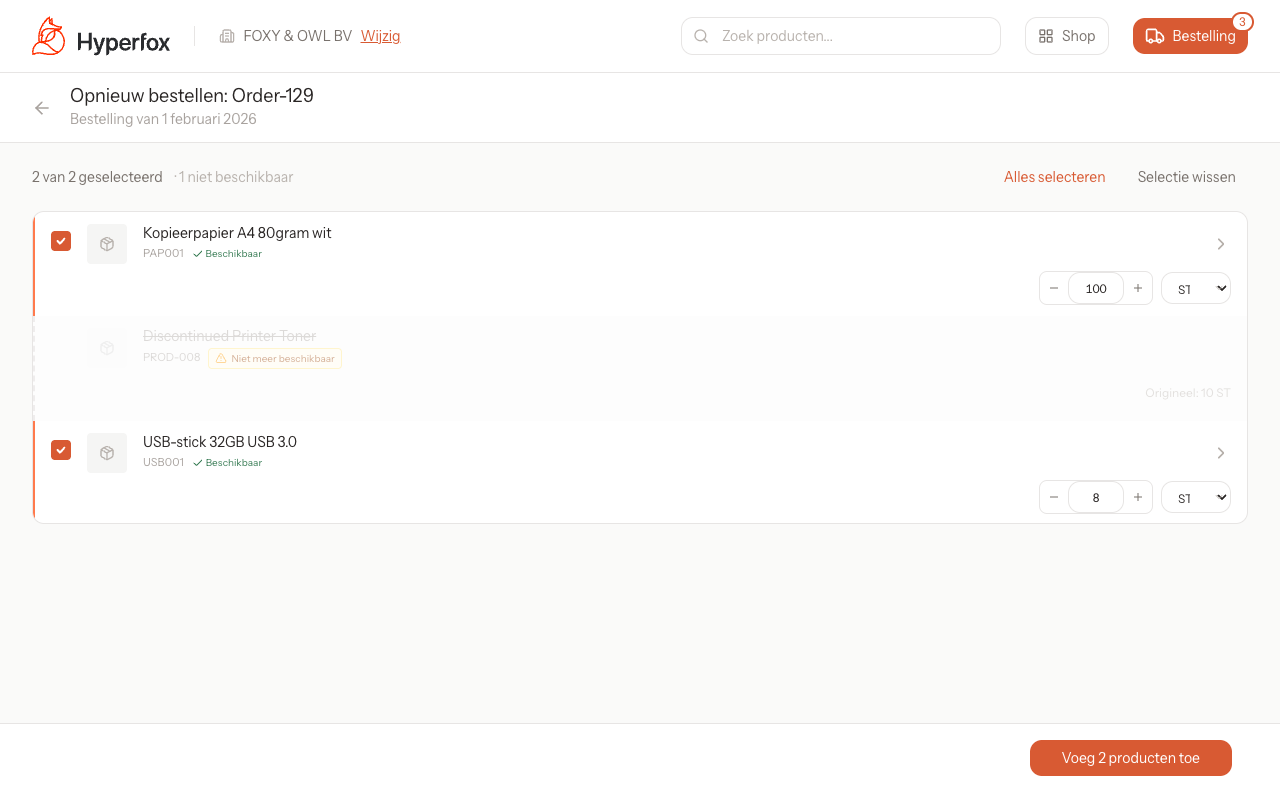
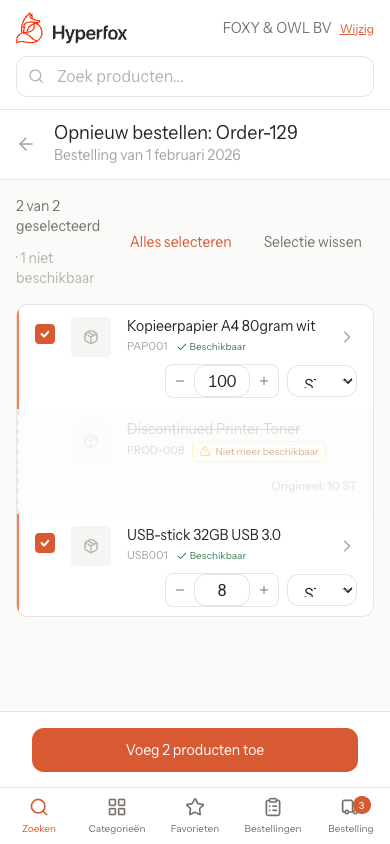
Steps:
- Go to Orders (see above).
- Click "Reorder" next to the desired order.
- You will see an overview of all products from that order.
- Select the products you want to reorder. Use "Select all" to check everything.
- Adjust quantities if needed using the + and − buttons.
- Click "Add X products" to add the selected products to your order.
Note: Products that are no longer available in the catalogue are marked as "No longer available" and cannot be added.
Click "Back to orders" to return to the overview.
Logging Out
As a customer you are logged in as long as the browser or app is open. To log out, simply close the browser window or the app. The next time you open your order link, you will be logged in again.
Tip: Your personal link remains valid. You can reorder at any time using the same link.
For Sales Reps and Administrators
This section is intended for sales representatives and administrators who manage the order portal on behalf of multiple customers.
Access via the General Link
As a sales rep or administrator, you will receive a general access link. When you open this link, you arrive at a welcome page. Click "Start" to proceed to the customer selection page.
Customer Selection
On the customer selection page you will see an overview of all your B2B customers.
- Search — Use the search field to search by company name, city, or account ID.
- Select customer — Click a customer to open the order portal as that customer. From that point on, everything works exactly as described in the sections above (browsing products, ordering, etc.).
Sharing an Order Link with a Customer
Next to each customer in the list you will see an "Order link" button. Click it to copy a unique order link for that customer to your clipboard. You can then share this link with the customer (via email, chat, etc.) so they can order independently without seeing the customer selection page.
Switching Customers
When you are logged in as a sales rep acting as a customer, you will see the name of the selected company in the top right with a "Change" button next to it.
- Desktop: Click "Change" in the top right of the header.
- Mobile: Tap "Change" in the header at the top.
You will then return to the customer selection page where you can select a different customer.
This guide was last updated in March 2026. For questions, contact your supplier.