Connecting Your Microsoft Organisation (Mailbox Access)
To read incoming orders, Hyperfox needs access to the mailbox(es) where those orders arrive — typically a shared mailbox such as [email protected]. You grant this access by connecting your Microsoft 365 organisation to Hyperfox once. After that, you choose exactly which authorized mailboxes Hyperfox should monitor.
The process on Hyperfox's side is straightforward: you start the connection, complete Microsoft's authorization flow, and then select your mailboxes. This guide walks you through each step.
Note: The authorization itself happens inside your own Microsoft 365 environment. Hyperfox cannot grant itself access — a Microsoft administrator in your organisation decides whether to approve the connection.
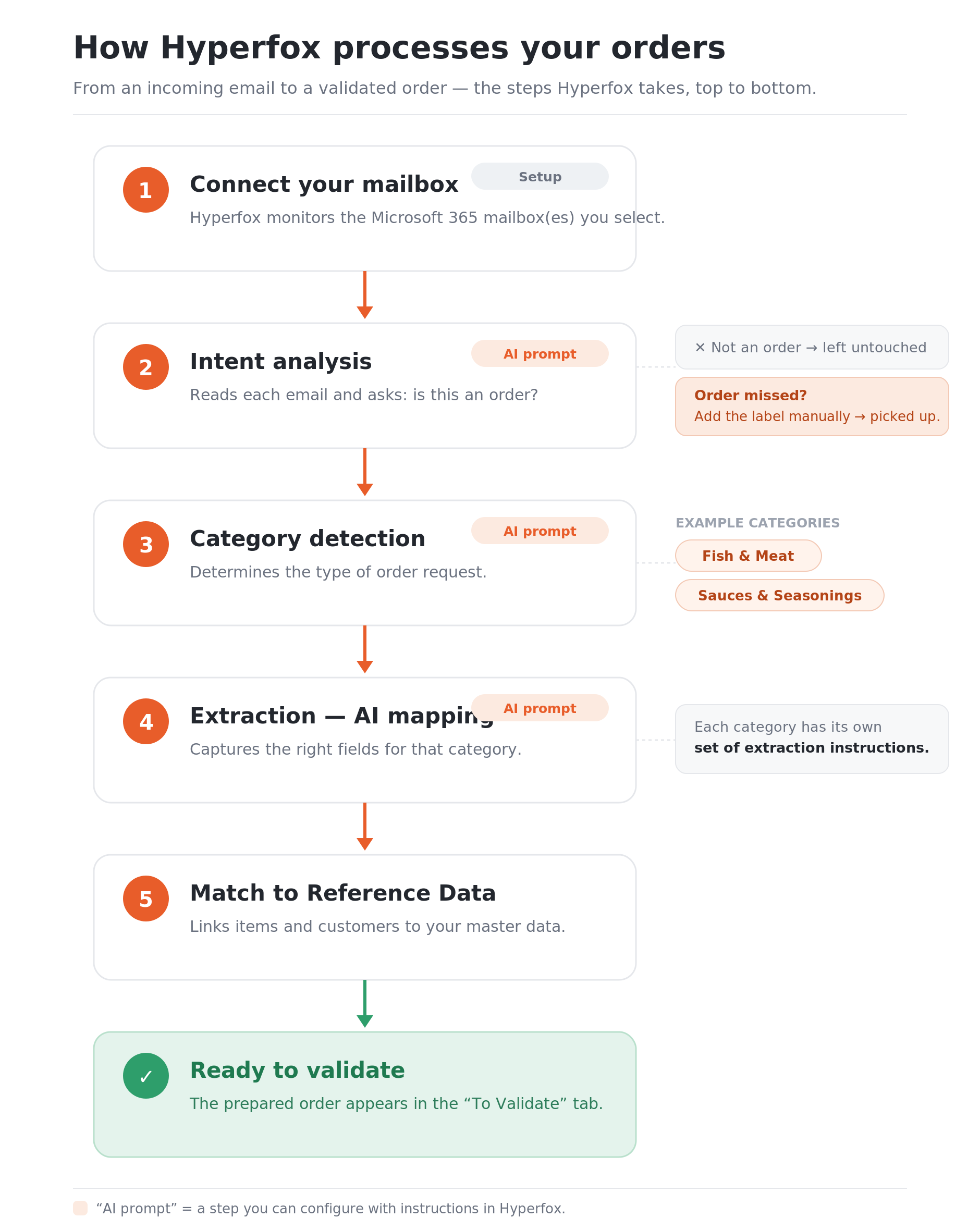
Table of Contents
- Before you start
- Step 1: Start the connection in Hyperfox
- Step 2: Authorize Hyperfox in Microsoft
- Step 3: Select the mailboxes to monitor
- Step 4: Manage which emails Hyperfox processes
- Handling different order types: categories
- What happens next
- Restricting which mailboxes Hyperfox can reach
- What is Hyperfox doesn't detect my order
Before you start
You will need:
- A user with sufficient permissions in your Microsoft 365 organisation to approve the connection. Granting Hyperfox access requires administrator consent, so this is usually a Global Administrator (or an administrator authorized to consent to applications on the organisation's behalf).
- Access to Hyperfox with the rights to manage the mailbox connection. If you are not an administrator, the Microsoft authorization step will ask an administrator in your organisation to approve the request before you can continue.
Step 1: Start the connection in Hyperfox
In Hyperfox, go to settings > channels. Add the Outlook Channel, this begins the authorization process and forwards you to Microsoft to complete it.
Step 2: Authorize Hyperfox in Microsoft
Hyperfox forwards you to a Microsoft sign-in and consent flow. Here you:
- Sign in with your Microsoft account (the user with sufficient permissions).
- Review the permissions Hyperfox requests.
- Approve (consent to) the request. Once you approve, Microsoft returns you automatically to Hyperfox.
Note: The permissions Hyperfox requests apply, by default, at the organisation level. You can scope Hyperfox down to only specific mailboxes afterwards — see Restricting which mailboxes Hyperfox can reach.
Step 3: Select the mailboxes to monitor
After the authorization process Microsoft returns you to the settings screen of the newly added channel.
Within the newly created channel select the mailbox — or mailboxes — within the tab 'Mailboxes' you want Hyperfox to monitor for incoming orders. Only the mailboxes you select will be watched; the others are left untouched.
Step 4: Manage which emails Hyperfox processes
Monitoring a mailbox does not mean Hyperfox processes every message that arrives in it. Instead, Hyperfox analyses the intent of each incoming email to decide whether it should be handled as an order.
For every new message in a monitored mailbox, Hyperfox looks at the content and determines what the sender is trying to do. Only emails whose intent is recognised as Order detection prompt are picked up and prepared for validation. Messages with a different intent — for example general correspondence, replies, out-of-office notifications, newsletters, or other non-order mail — are left alone and not turned into orders.
The Order detection prompt can be managed within the settings tab of the Outlook Channel
This intent-based approach means you can safely point Hyperfox at a mailbox that also receives other types of mail: Hyperfox focuses only on the messages that actually represent an order, without you having to pre-filter or set up separate rules.
Note: Because the decision is based on intent rather than a fixed keyword or sender list, Hyperfox can recognise orders even when they are phrased differently from one customer to the next.
What happens next
Once you have selected your mailboxes, Hyperfox begins monitoring them for incoming order emails. New orders arriving in those mailboxes are picked up automatically and appear in the Processing tab, ready to be read and prepared by the AI. The emails which we process are labelled with a red label named 'Hyperfox' and remain in the inbox folder where they are detected.
You can return to the mailbox connection settings at any time to review or change which mailboxes are monitored.
Note: use Outlook automation rules to move or archive the e-mails based on the added label.
Handling different order types: categories
Once Hyperfox has recognised that an email is an order, it can work a level deeper and treat different types of order requests differently. We call these types categories.
Not every order should be read in the same way. For example, an order in the Fish & Meat category may need to be handled differently from an order in the Sauces & Seasonings category — different information matters, and it may appear in a different form.
Just like intent analysis, category detection is driven by a prompt: Hyperfox analyses the order and determines which category it belongs to. Each category can then have its own set of Extraction Instructions, so the AI captures exactly the data that matters for that type of order.
In practice this means:
- Hyperfox first determines the order's category based on your category prompt.
- It then applies the Extraction Instructions configured for that category.
- The same mailbox can therefore process very different order types, each handled in the way that fits it best.
Tip: Categories build directly on extraction instructions. To learn how extraction instructions work and how to edit them, see the Extraction Prompts (AI Mapping) guide.
Restricting which mailboxes Hyperfox can reach
Selecting mailboxes in Hyperfox controls what Hyperfox monitors. If your administrator also wants to enforce, at the Microsoft 365 level, exactly which mailboxes the Hyperfox application is technically allowed to access, this can be locked down with an Exchange Application Access Policy.
See Restricting Hyperfox's Mailbox Access (Microsoft 365) for the administrator steps.
What if Hyperfox does not detect my order?
Occasionally an order may not be picked up automatically. Because intent analysis works on the content of each email, an unusual phrasing or format can sometimes cause an order to be missed.
When this happens, you don't need to forward or re-send anything. Since Hyperfox manages processing through labels, you can simply add the label manually to the email in the monitored mailbox. Hyperfox will then pick it up and process it as an order, just like an automatically detected one.
In short:
- Find the order email in the monitored mailbox.
- Apply the Hyperfox label to it manually.
- Hyperfox detects the label and processes the order.